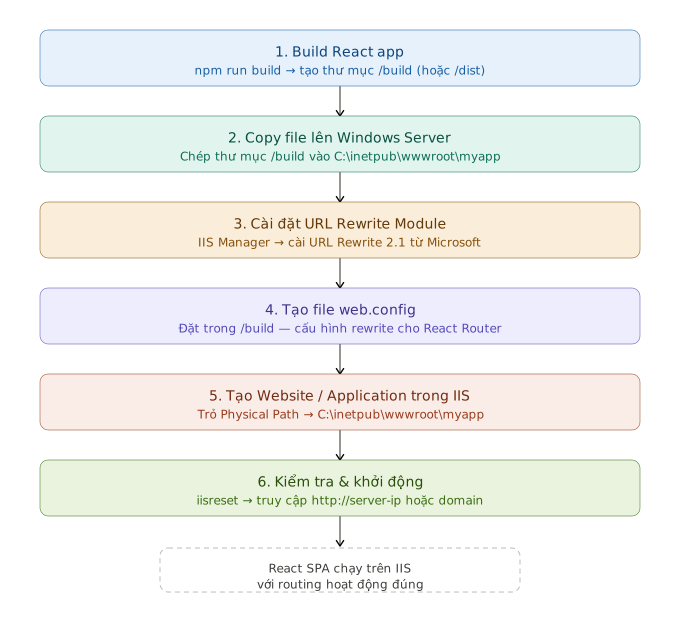
Đây là hướng dẫn đầy đủ để triển khai React app lên Windows Server IIS:
- Bước 1: Build React app
- Bước 2: Cài URL Rewrite Module
- Bước 3: Cài URL Rewrite Module
- Bước 4: Tạo file web.config
- Bước 5: Cấu hình IIS
- Bước 6: Kiểm tra
- 7. Xử Lý Sự Cố Thường Gặp
- 8. Tối Ưu Hóa (Tùy Chọn)
Bước 1: Build React app
npm install
npm run build
Kết quả là thư mục build/ (CRA) hoặc dist/ (Vite) chứa các file tĩnh.
Bước 2: Cài URL Rewrite Module
Chép toàn bộ nội dung thư mục build/ vào:
C:\inetpub\wwwroot\myapp\
Bước 3: Cài URL Rewrite Module
Tải và cài IIS URL Rewrite 2.1 từ Microsoft tại https://www.iis.net/downloads/microsoft/url-rewrite
Đây là bắt buộc để React Router hoạt động — nếu thiếu, F5 trên bất kỳ route nào sẽ bị lỗi 404.
Bước 4: Tạo file web.config
Đặt file này trong thư mục build/ (ngang hàng với index.html)
<?xml version="1.0" encoding="UTF-8"?>
<configuration>
  <system.webServer>

    <rewrite>
      <rules>
        <rule name="React Router" stopProcessing="true">
          <match url=".*" />
          <conditions logicalGrouping="MatchAll">
            <add input="{REQUEST_FILENAME}" matchType="IsFile" negate="true" />
            <add input="{REQUEST_FILENAME}" matchType="IsDirectory" negate="true" />
          </conditions>
          <action type="Rewrite" url="/index.html" />
        </rule>
      </rules>
    </rewrite>

    <staticContent>
      <remove fileExtension=".json" />
      <mimeMap fileExtension=".json" mimeType="application/json" />
      <remove fileExtension=".woff2" />
      <mimeMap fileExtension=".woff2" mimeType="font/woff2" />
    </staticContent>

    <httpProtocol>
      <customHeaders>
        <add name="X-Content-Type-Options" value="nosniff" />
        <add name="X-Frame-Options" value="SAMEORIGIN" />
      </customHeaders>
    </httpProtocol>

  </system.webServer>
</configuration>
Bước 5: Cấu hình IIS
Mở IIS Manager, sau đó:
- Chuột phải vào Sites → Add Website
- Điền các thông tin:
- Site name:
myapp - Physical path:
C:\inetpub\wwwroot\myapp - Port:
80(hoặc port tùy chọn)
- Site name:
- Chọn Application Pool với
.NET CLR version = No Managed Code(vì đây là app tĩnh) - Nhấn OK
Bước 6: Kiểm tra
iisreset
Sau đó truy cập http://localhost hoặc IP server.
Nếu dùng sub-path (ví dụ http://server/myapp), cần thêm homepage vào package.json:
"homepage": "/myapp"
7. Xử Lý Sự Cố Thường Gặp
| Vấn Đề | Giải Pháp |
|---|---|
| 403 Forbidden | Kiểm tra quyền thư mục, bật “Directory Browsing” hoặc “Default Document” |
| 404 Not Found | Thêm web.config với URL Rewrite |
| CORS Error | Cấu hình CORS trong IIS hoặc backend API |
| File tĩnh không tải | Kiểm tra MIME types trong IIS |
8. Tối Ưu Hóa (Tùy Chọn)
Bật Compression:
- Vào IIS Manager → Site → Compression
- Bật “Enable dynamic content compression”
Thêm HTTPS:
- Cài đặt SSL certificate
- IIS Manager → Site → Bindings → Add HTTPS binding
Với cả ứng dụng React và máy chủ Node.js đang chạy, trang web của bạn đã được triển khai hoàn chỉnh và sẵn sàng sử dụng. Hy vọng bài viết này hữu ích và ngắn gọn.
Happy Coding 💻😄
Tham khảo:
- Deploying a React & Node.js App to a Windows Server
- Deploying React Apps with Vite: The Complete Guide
- Enable IIS and Host nodejs application on IIS
- Chạy Express (Node.js) dưới dạng dịch vụ trên Windows
- Công cụ giám sát và kiểm tra hiệu suất mã nguồn mở Node.js
- Videos Học Lập Trình NodeJS Căn Bản
- Triển khai một web site React trên Windows Server IIS
- Triển khai một web site React trên Windows Server IIS